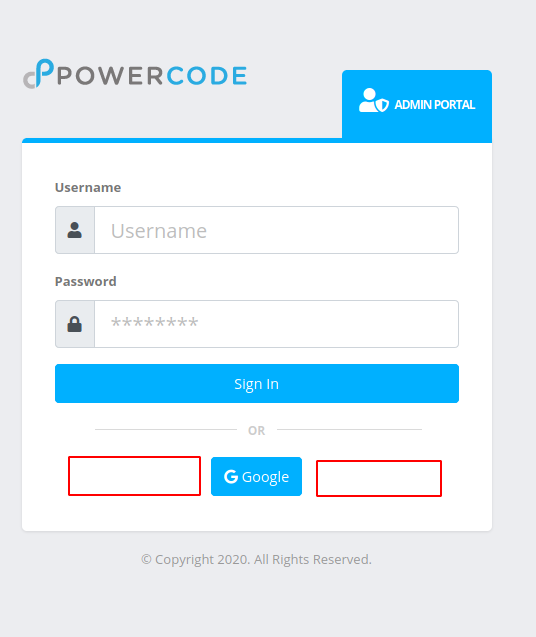
This page explains how to let staff sign in to the Powercode admin portal with their Google Workspace (G Suite) accounts. You set up a custom SAML app in Google, then enter Google's details on Powercode's SSO & SAML page.
Before you start, open Third Party > SSO & SAML in Powercode. You need the SSO & SAML authentication permission (System → Third Party Integration) at Edit to see that menu link. The Service Provider Details card at the top shows the ACS URL and Entity ID you will enter in Google. These URLs are built from the address in your browser, so open the page at the address your staff use to sign in.
¶ Google Side
-
Login into G-Suite admin account.
-
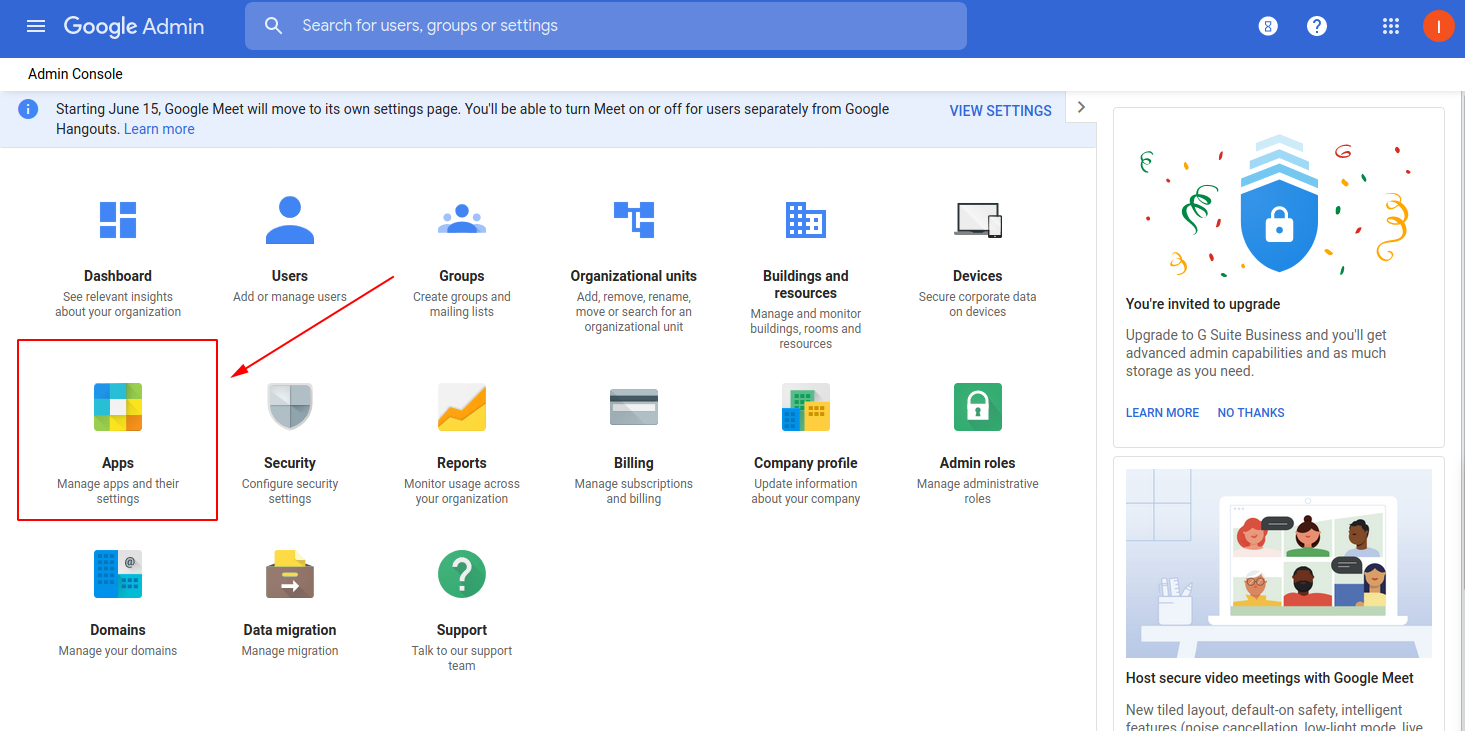
Click Apps
-
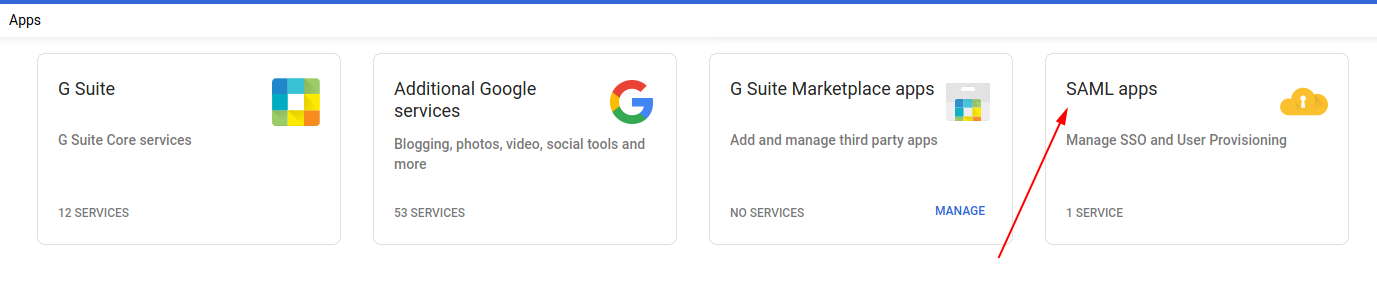
Select SAML apps
-
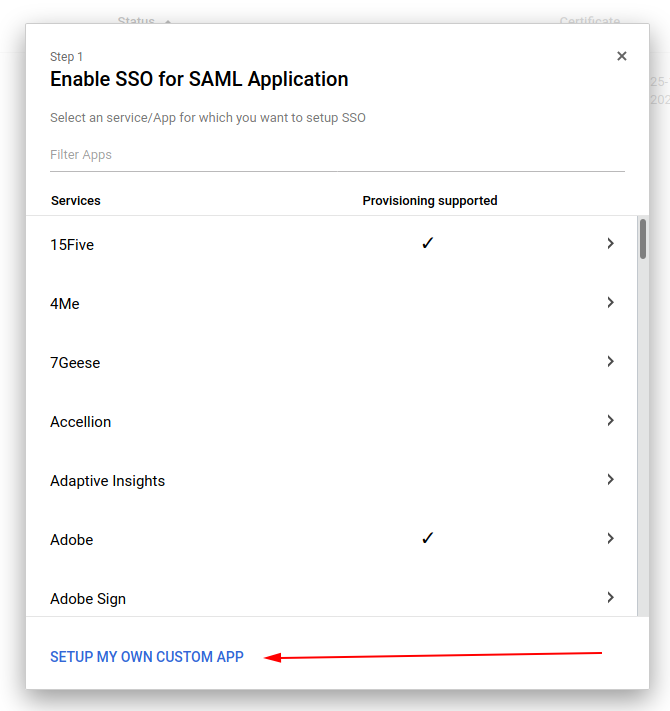
Click the add button
-
Select SETUP MY OWN CUSTOM APP
-
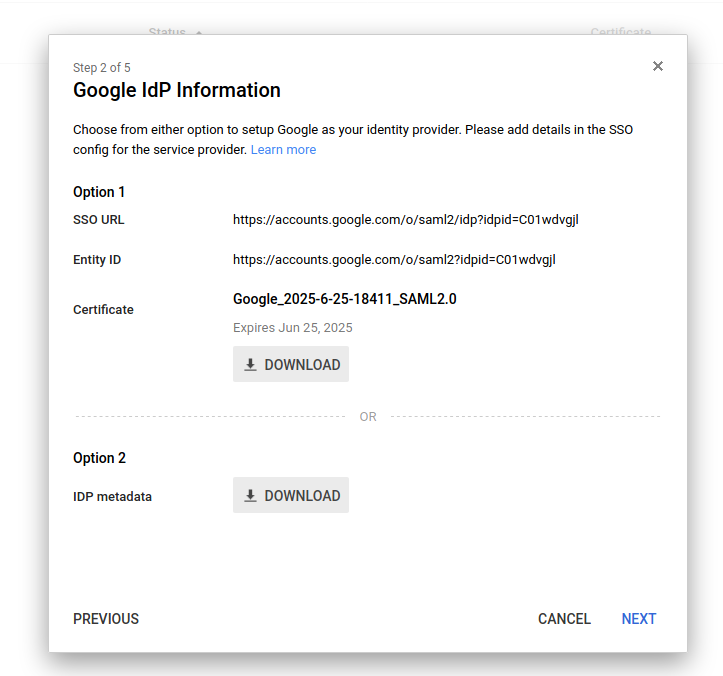
Note the SSO URL
https://accounts.google.com/o/saml2/idp?idpid=<your unique id>as you will need it during the Powercode side. -
Note the Entity ID
https://accounts.google.com/o/saml2?idpid=<your unique id>as you will need it during the Powercode side. -
Download the certificate
-
Click next
-
In the application, the name field enters a unique name.
-
In the description field add a brief description.
-
Upload logo.
-
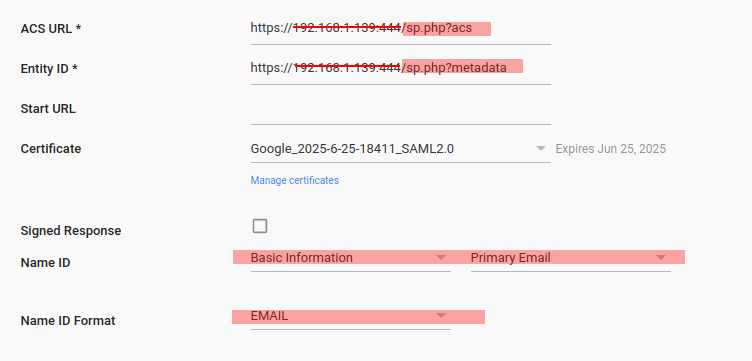
In the ACS URL enter Powercode's ACS URL, for example
https://yourdomain.com/uapi/sp?acs. -
In the Entity ID enter Powercode's Entity ID, for example
https://yourdomain.com/uapi/sp?metadata. -
Name ID: Basic Information - Primary Email
-
Name ID Format: EMAIL
-
Click Next
-
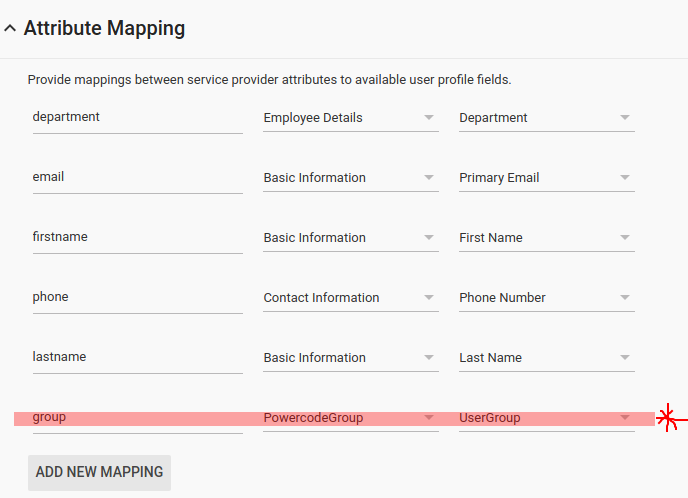
Configuration Attribute Mapping – Click: ADD NEW MAPPING, and add these mappings. Type the app attribute names exactly as shown, in lowercase:
Google attribute App attribute Primary email emailFirst name firstnameLast name lastnamePowercodeGroup > UserGroup (optional, see User groups below) group -
Click finish.
-
Click the three vertical dots next to your new Application in the SAML Apps list and either set it ‘On for everyone’ or ‘On for some organizations. In the latter case, you will then need to specify what organizations.
¶ Powercode Side
¶ Set up the provider
- Go to Third Party > SSO & SAML.
- In the provider card, fill in Provider Information:
- Provider Name: the text on the sign-in button, for example Google.
- Provider Icon: optional, for example
fab fa-google.
- Fill in Identity Provider Data:
- Entity ID: the Google Entity ID from step 7.
- SSO URL: the Google SSO URL from step 6.
- SLO URL: leave blank.
- IdP Certificate: open the certificate you downloaded in step 8 in a text editor and paste its whole contents.
- Fill in Attribute Mapping:
- Default User Group: the Powercode permission group for users who have no group set in Google, or --- NA --- for none.
- User Identifier (UID): leave as
email. - Username:
email, First Name:firstname, Last Name:lastname, Group:group.
- If you use User groups (below), fill in Group Mapping: next to each Powercode permission group, enter the group name you will give users in Google's UserGroup field.
- Leave Security Configuration at its defaults.
- Click Validate. Metadata is correct means the settings are complete. Metadata is invalid shows the reason.
- Set the provider to Enabled.
There is no Save button. Each setting is saved as soon as you change it, and Powercode shows Configuration Saved.
Each time someone signs in with Google, Powercode matches them to the user whose Username is their email address, or creates a new user, and replaces their permission groups using the mapping above. See How sign-in works in SSO & SAML - Microsoft Entra ID for the full rules, which are the same for every provider.
Making a user inactive in Powercode does not stop them signing in with Google. Turn off their Google account or remove their access to the SAML app as well.
¶ User groups (optional)
Unfortunately, GSuite doesn't offer a way to send user groups through SAML but Google suggests that you add a custom schema to user accounts.
-
Go to: https://developers.google.com/admin-sdk/directory/v1/reference/schemas/insert?authuser=1
-
On the right side enter the next schema:
{ "displayName": "PowercodeGroup", "schemaName": "PowercodeGroup", "fields": [ { "fieldType": "STRING", "fieldName": "UserGroup", "displayName": "UserGroup", "multiValued": true, "readAccessType": "ADMINS_AND_SELF" } ] } -
Set CustomerID to
my_customer, which automatically uses this Google account's ID.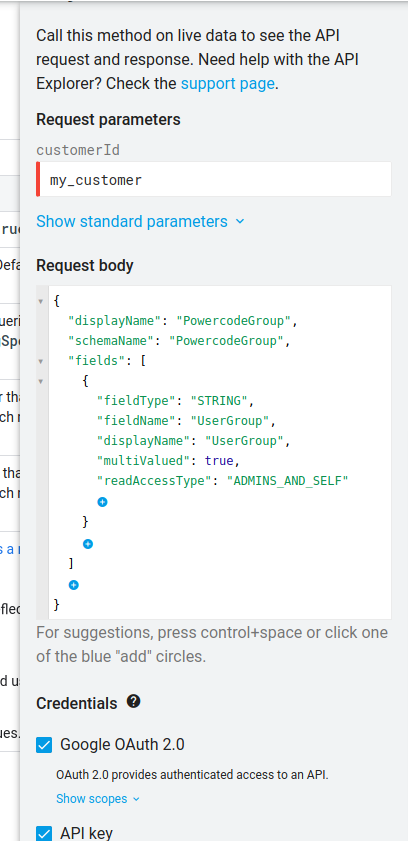
-
Click Execute to add the new schema for all users.
-
In the GSuite Admin panel, navigate back to Apps > SAML apps as before and add the PowercodeGroup > UserGroup mapping to
group, as in step 18. -
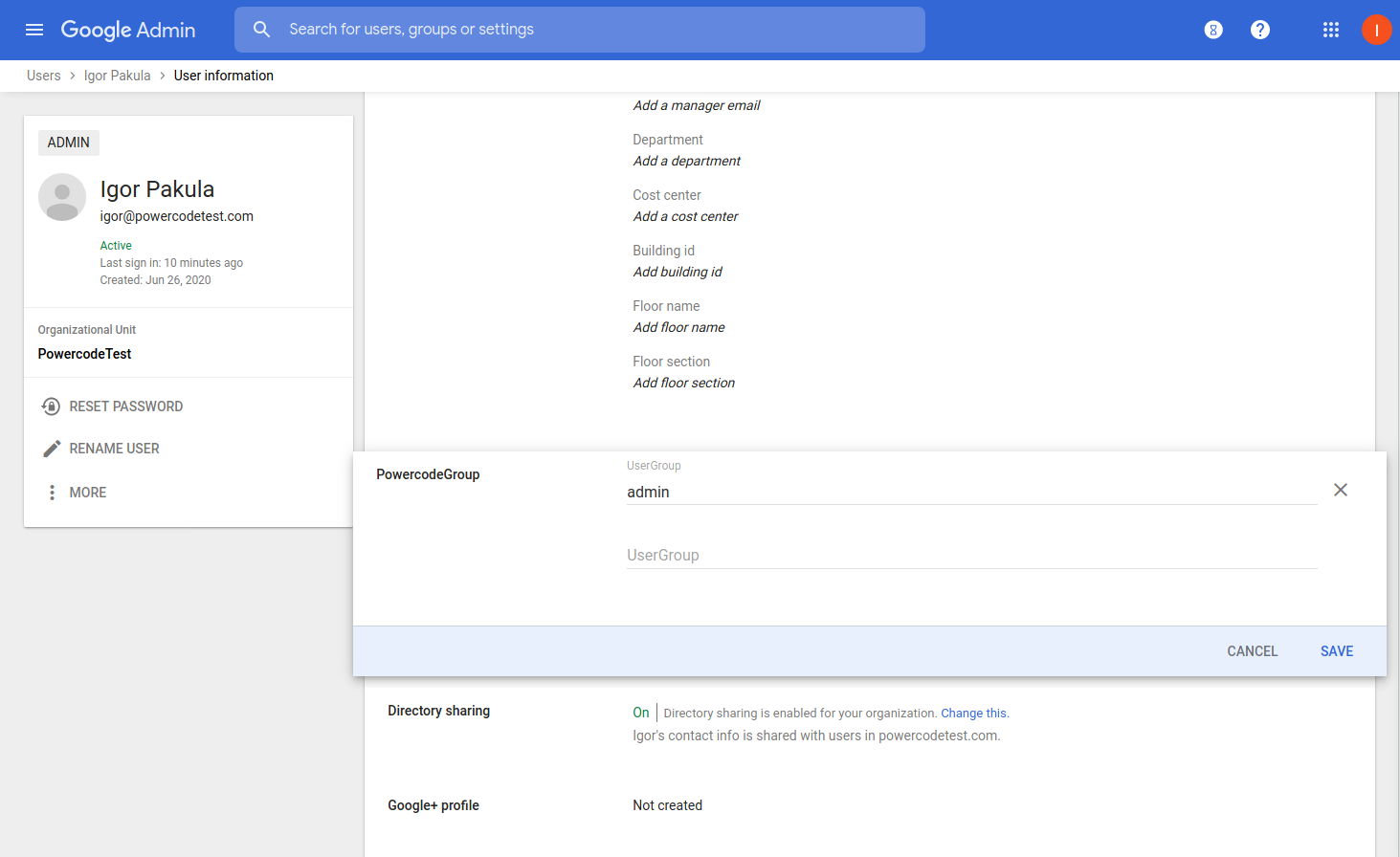
In the GSuite Admin panel, navigate to the User and select an user.
-
Set group name to user as many as you need.
Once the provider is Enabled, the Powercode sign-in page shows a button with its Provider Name under the username and password form.