This guide walks through configuring IPv6 in Powercode end to end: defining an IPv6 Address Range on a network device (BMU), then assigning IPv6 (a WAN prefix and optional Prefix Delegation) to customer equipment, and finally verifying the assignment.
¶ Overview
IPv6 in Powercode is configured in two stages:
- Create an IPv6 Address Range on the BMU that serves your customers. The range holds the overall IPv6 pool you were allocated by your upstream, the size of the subnet each device receives, optional Prefix Delegation settings, and DHCPv6 options.
- Assign IPv6 to customer equipment. On each device you choose whether it runs dual-stack (IPv4 + IPv6) or single-stack (IPv6 only), then select the WAN range and, if used, the PD range.
A few concepts referenced throughout (see the Field reference at the end for the full list):
- IPv6 Prefix (pool): the whole block you administer, e.g.
2001:db8::/32. - Equipment Prefix Length: the size of the subnet handed to each device, e.g.
/64. - Prefix Delegation (PD): a larger prefix delegated to the customer's router so it can address its own downstream LANs.
- Dual-stack vs single-stack: whether a device gets both IPv4 and IPv6, or IPv6 only.
¶ Prerequisites
- A configured BMU / network device that serves the customers who will receive IPv6.
- An IPv6 prefix allocated to you by your upstream provider (this guide uses the documentation prefix
2001:db8::/32for illustration). - Permission to edit network address ranges and to edit customer equipment.
- If you intend to hand out addresses dynamically, a working DHCPv6 server.
¶ Part 1 — Create the Link BMU
If the BMU that will serve your IPv6 customers does not exist yet, create it first. Go to Network > BMU Overview and click Add New BMU, then select the Link tab and fill in:
- Name – a descriptive label, e.g. Example Link BMU.
- IP Address – the management IP of the Link gateway.
- Port – the Link gateway API port (e.g.
8443). - Password – the Link API key. The key must have the permissions listed on the form:
gateway:observability:read,gateway:config:write, andgateway:network:execute. - Powercode Server IP, Mirror Group, and Default Shared Network – set these as needed for your deployment.
- DHCP Mode – choose Layer 2 only (the default) if your customers' equipment is on networks directly attached to the Link, or Relay only if their DHCP requests reach the Link through a DHCP relay such as a router or Layer 3 switch. This setting affects IPv4 only and is shared by every Link BMU. See Link BMU.
Click Save to create the BMU.
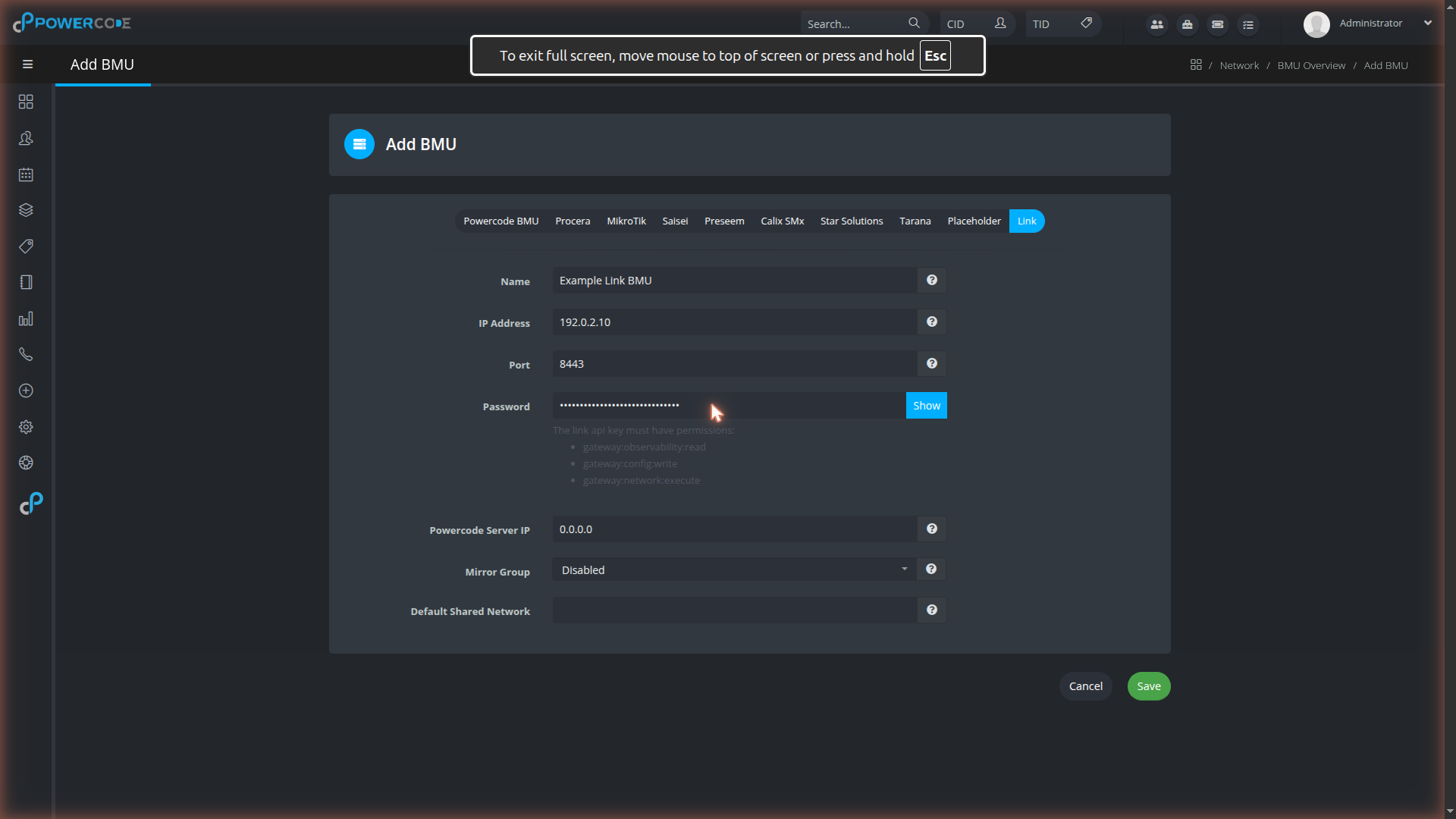
Then choose Edit BMU Details from the new BMU's Action menu, select the DHCP Listening Interfaces (the interfaces and IPv4/IPv6 addresses the Link should listen on for DHCP), and click Save. This field only appears once the BMU exists and Powercode can reach it. For all of the Link BMU's settings and tabs, see Link BMU.
Already have a BMU? Skip this part and continue with Part 2.
¶ Part 2 — Create an IPv6 Address Range
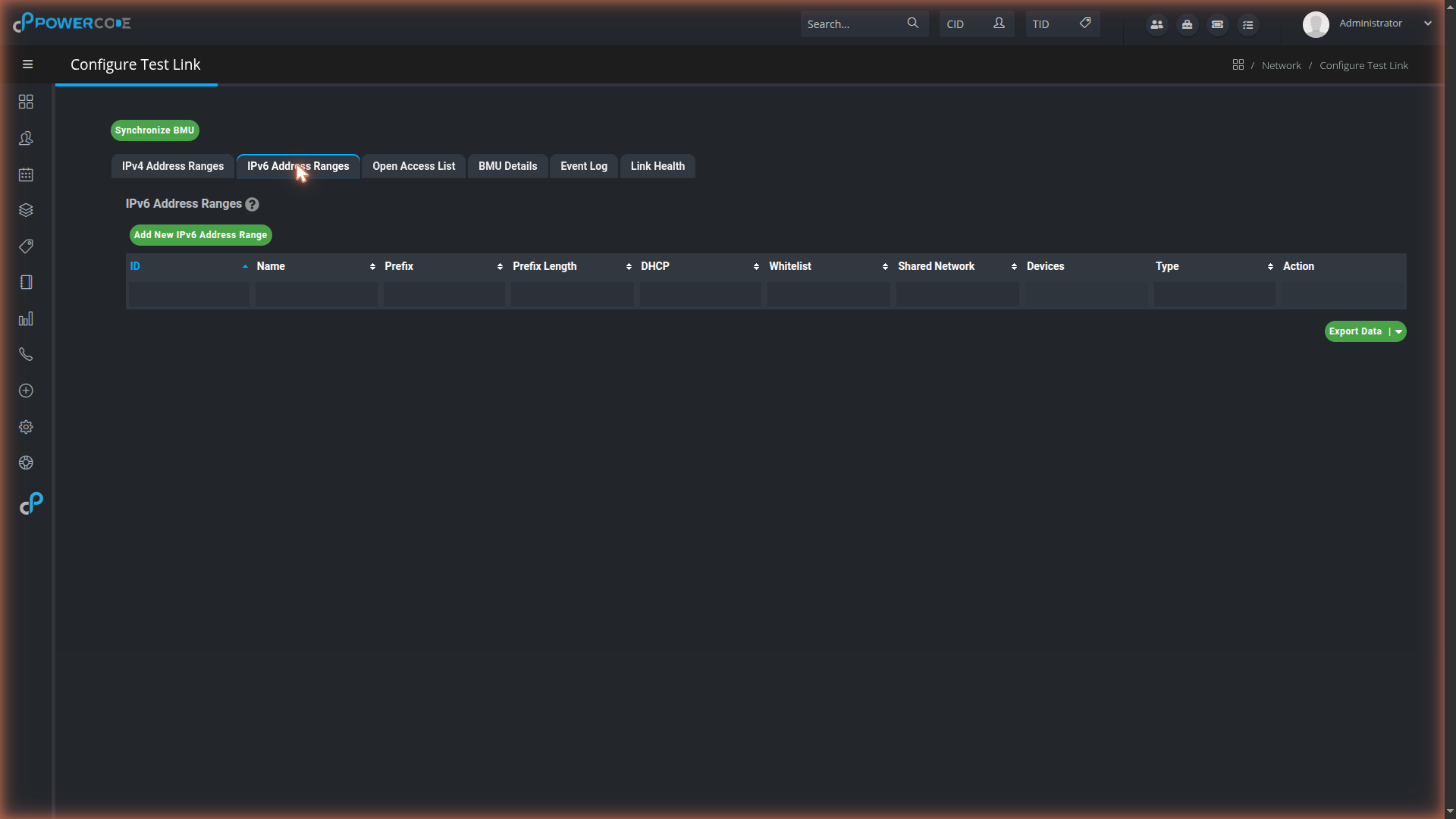
On the BMU that serves your customers (Network > BMU Overview → click the BMU), open the IPv6 Address Ranges tab. Click Add New IPv6 Address Range.
¶ Step 1 – Pool, assignment size, and Prefix Delegation
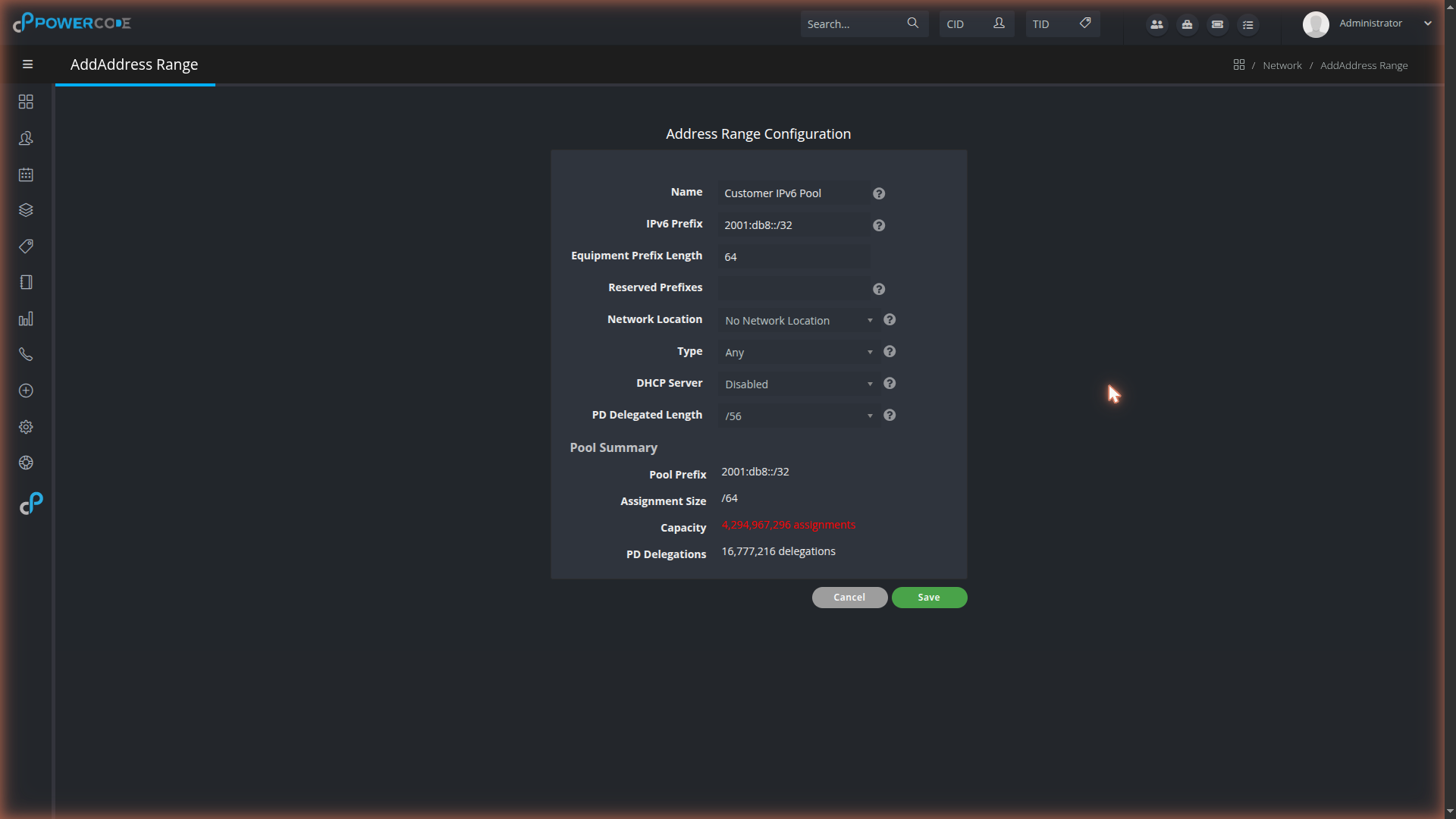
Fill in the range details:
- Name – a descriptive label, e.g. Customer IPv6 Pool.
- IPv6 Prefix – the pool in CIDR notation, e.g.
2001:db8::/32. - Equipment Prefix Length – the subnet size each device receives, e.g.
64(a/64per device). - Type / Network Location – classify the range as needed for your network.
- PD Delegated Length – set this (e.g.
/56) to turn the range into a Prefix Delegation pool. Leave it at None (No PD) if you are not delegating prefixes, or use Linked PD Range to point this WAN range at a separate PD pool.
As you fill the form, the Pool Summary calculates the pool prefix, the per-device assignment size, the total assignment capacity, and (when PD is enabled) the number of delegations available.
¶ Step 2 – DHCPv6 options (optional)
Set DHCP Server to Enabled to reveal the DHCPv6 Configuration section, then provide:
- DNS Server 1 v6 / DNS Server 2 v6 – the resolvers handed to clients (example shown:
2001:4860:4860::8888/2001:4860:4860::8844). - Lease Time (Seconds) – how long leases are valid (default
3600). - Shared Network – attach the range to a DHCP shared network if you use one.
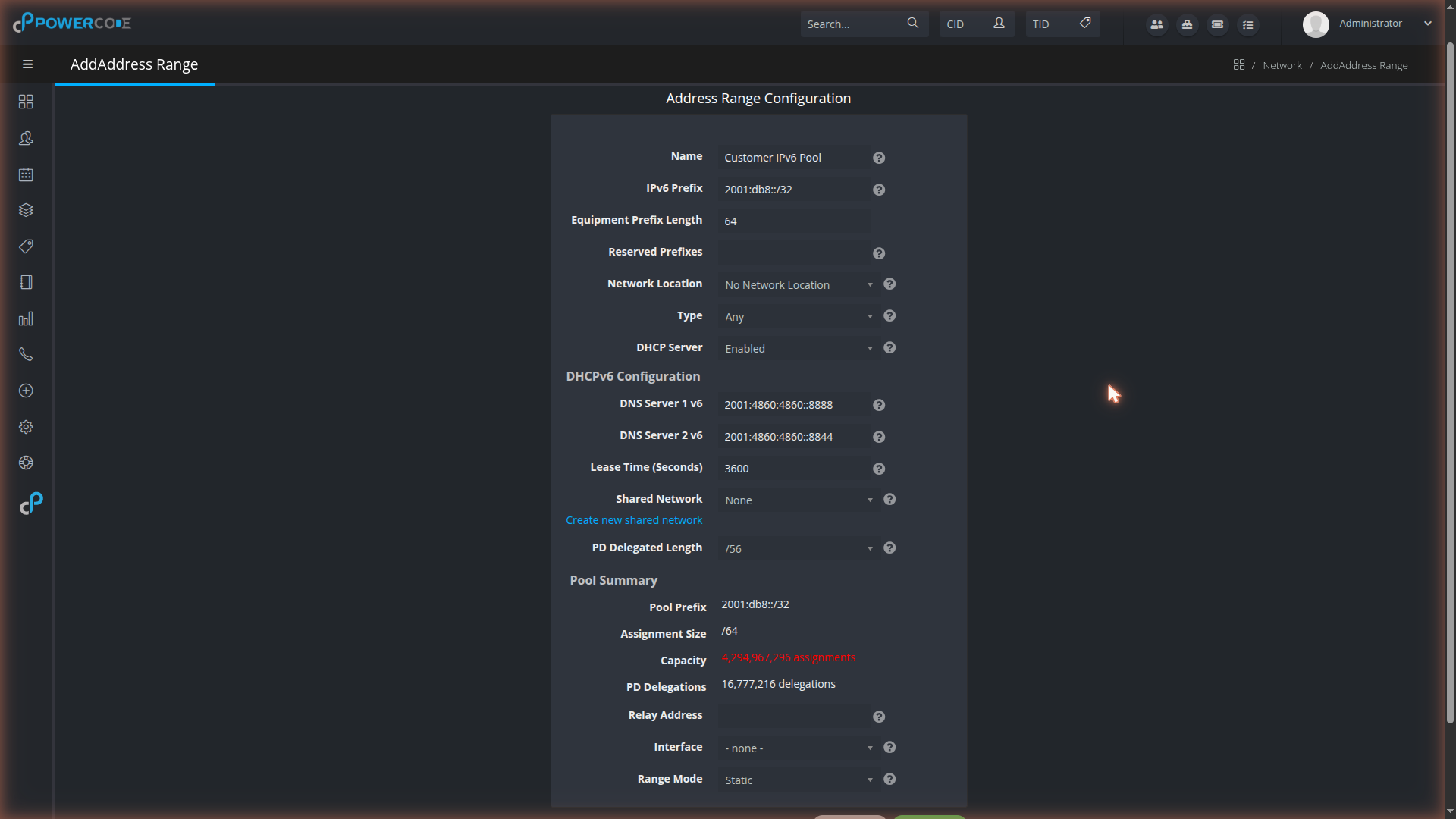
Click Save to create the range. It will now appear in the BMU's IPv6 Address Ranges list and is available to assign to equipment.
¶ Part 3 — Assign IPv6 to customer equipment
Open the customer (Customers > [customer]), go to the Inventory tab, and click Edit on the device. In Equipment Details, choose the IPv6 mode:
- IPv6 Dual Stack – the device receives both IPv4 and IPv6.
- IPv6 Single Stack – the device receives IPv6 only.
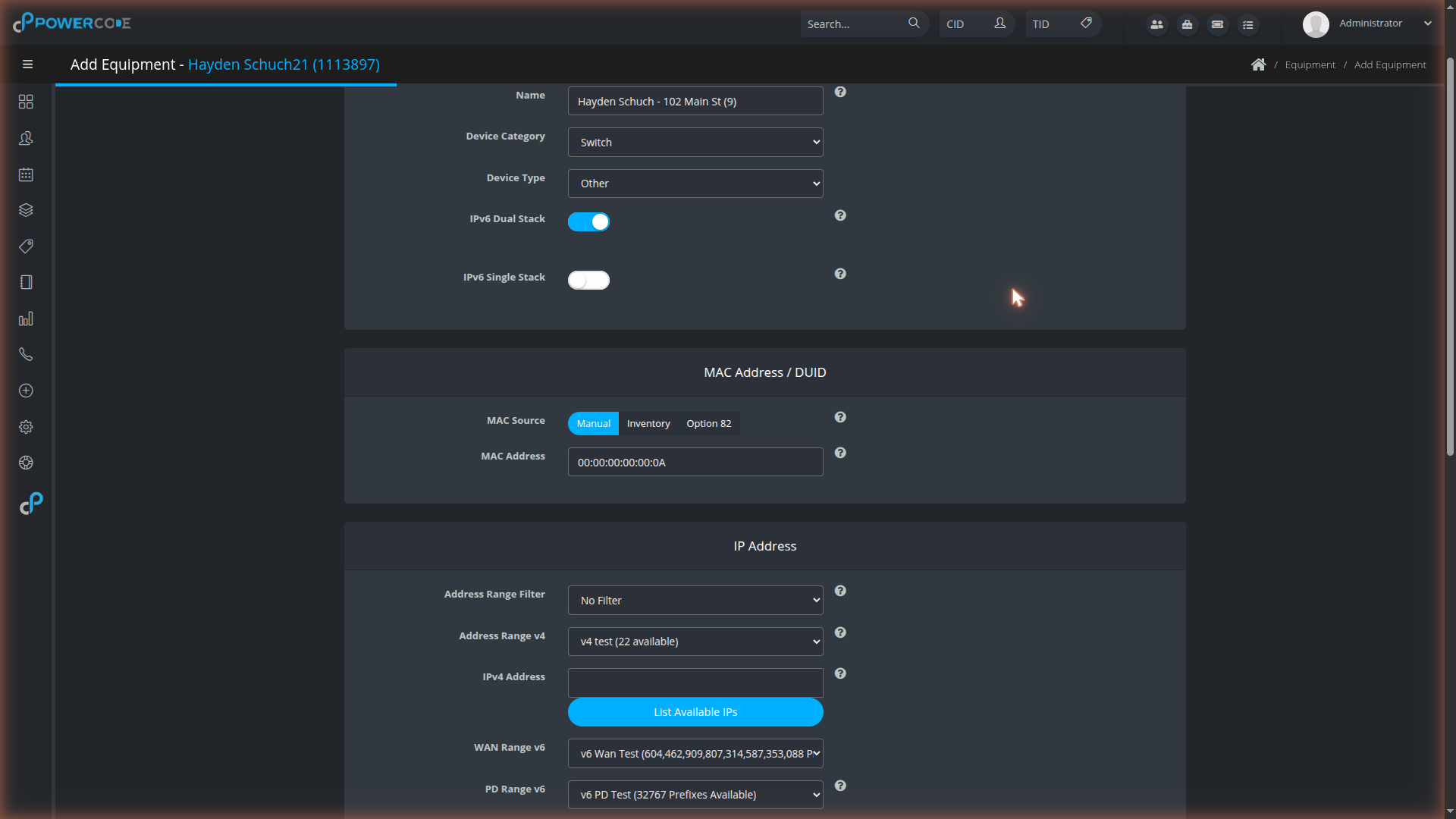
Scroll to the IP Address card and select the ranges:
- WAN Range v6 – the IPv6 range that provides the device's WAN address.
- PD Range v6 – the Prefix Delegation range. This is selected automatically when the chosen WAN range has a linked PD range; otherwise choose it here.
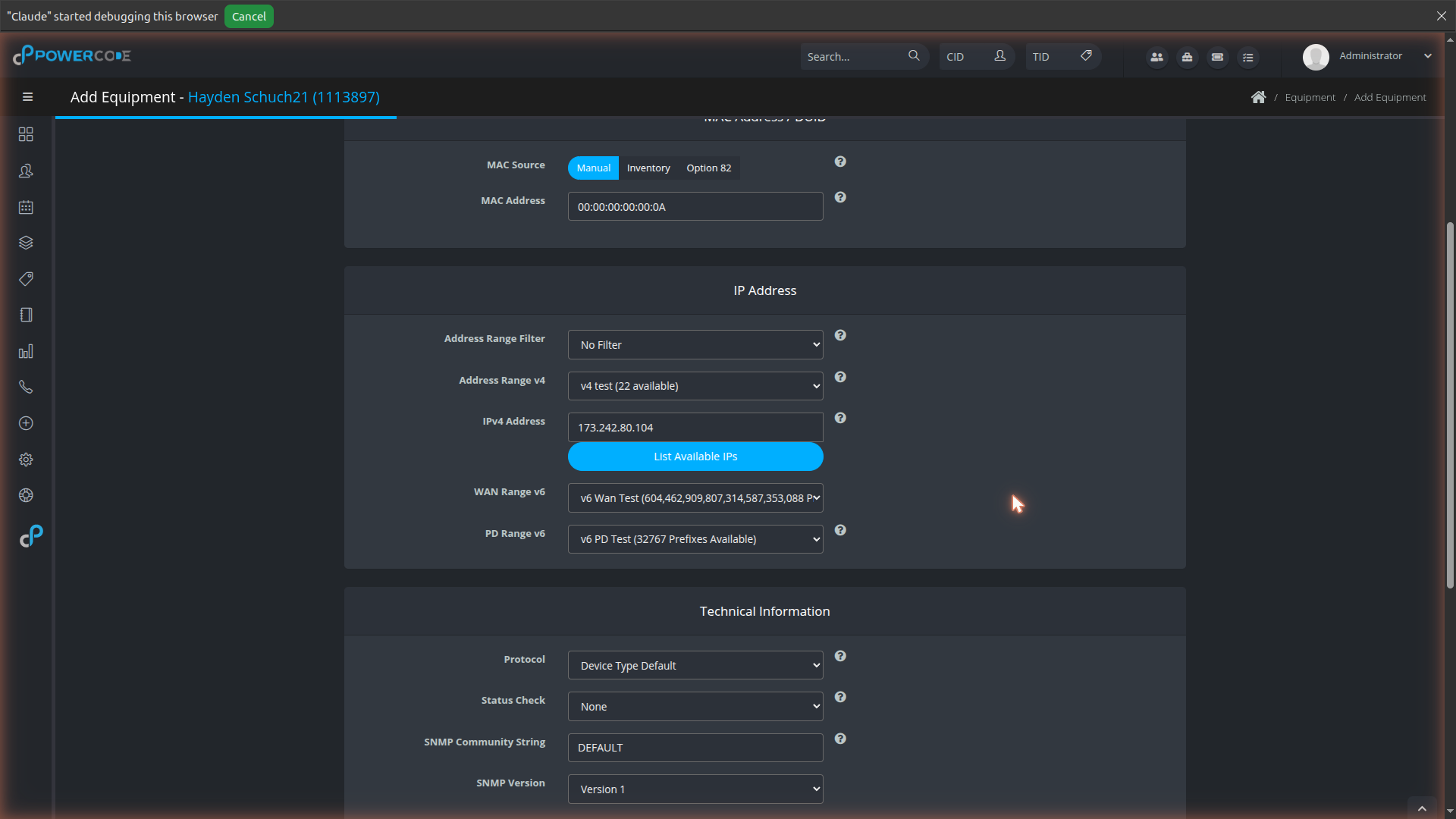
Click Save to apply the assignment.
¶ Part 4 — Verify the assignment
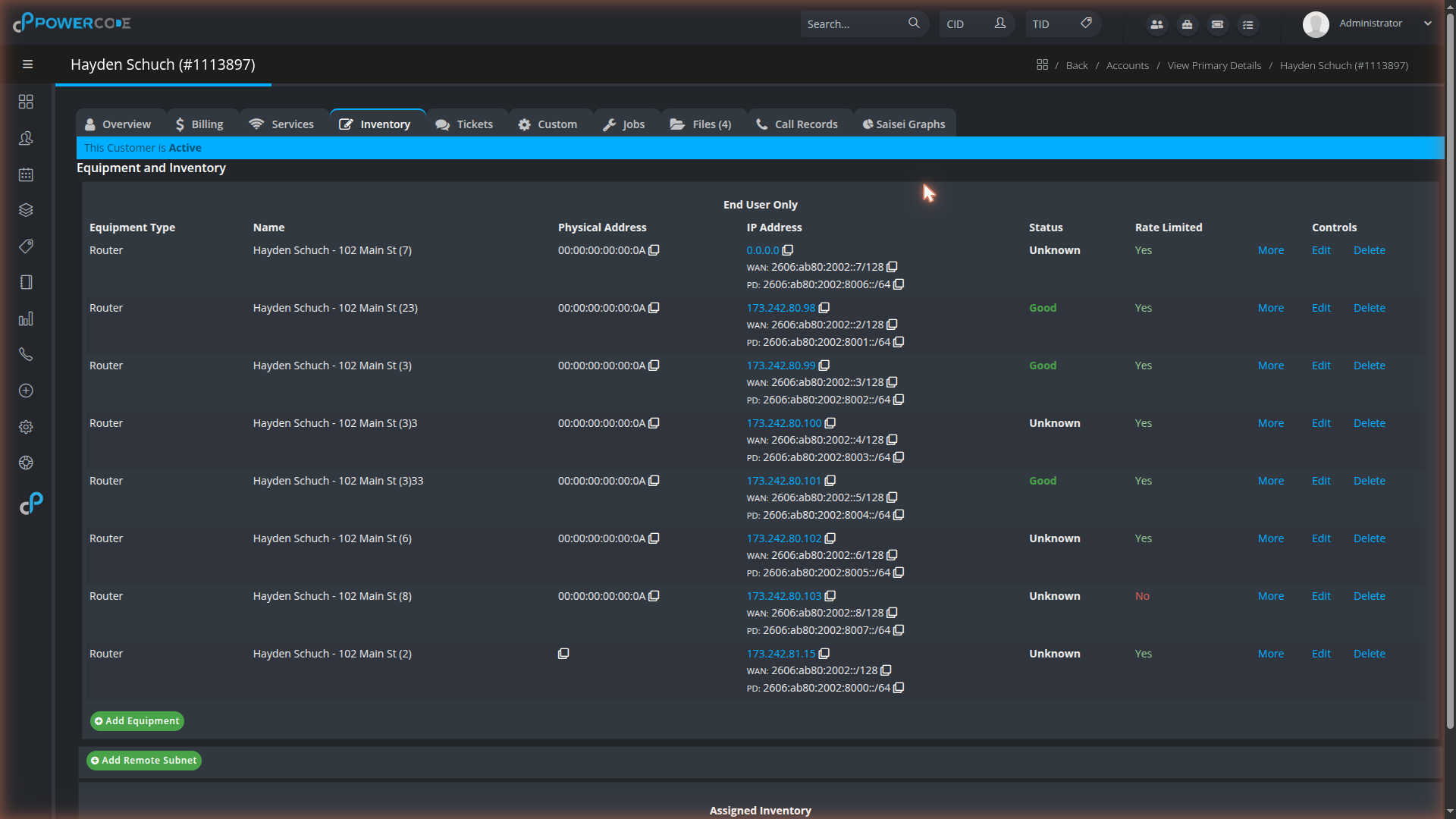
Back on the customer's Inventory tab, each device now shows its computed WAN address and PD prefix beneath its IP address.
¶ Field reference
| Field | Meaning |
|---|---|
| IPv6 Prefix | The overall IPv6 pool for the range, in CIDR notation (e.g. 2001:db8::/32). |
| Equipment Prefix Length | The subnet size assigned to each device from the pool (e.g. /64). Determines the assignment capacity shown in the Pool Summary. |
| PD Delegated Length | The size of each delegated prefix when the range is used for Prefix Delegation (/48, /56, /60, or /64). None (No PD) disables delegation. |
| Linked PD Range | Points a WAN range at a separate range that supplies delegated prefixes, instead of delegating from this range directly. |
| Reserved Prefixes | Prefixes within the pool to exclude from automatic assignment. |
| DHCP Server | Enables the DHCPv6 options for the range. |
| DNS Server 1/2 v6 | The IPv6 DNS resolvers advertised to clients. |
| Lease Time | DHCPv6 lease duration in seconds. |
| Shared Network | Associates the range with a DHCP shared network. |
| IPv6 Dual Stack | Device receives both IPv4 and IPv6. |
| IPv6 Single Stack | Device receives IPv6 only. |
| WAN Range v6 | The IPv6 range that provides the device's WAN address. |
| PD Range v6 | The range that provides the device's delegated prefix (PD). |