This page breaks down the various sections of the Customer Overview - Overview tab and explains their function.
¶ Top Row Information
 Group: Group the Customer belongs to if any. CustomerID: Customer identification number, used to identify Customer throughout Powercode. Customer Alert banner: Alert Banners show up just under the top row of information items. Set alerts under Items > Custom Items > Custom Customer Alerts.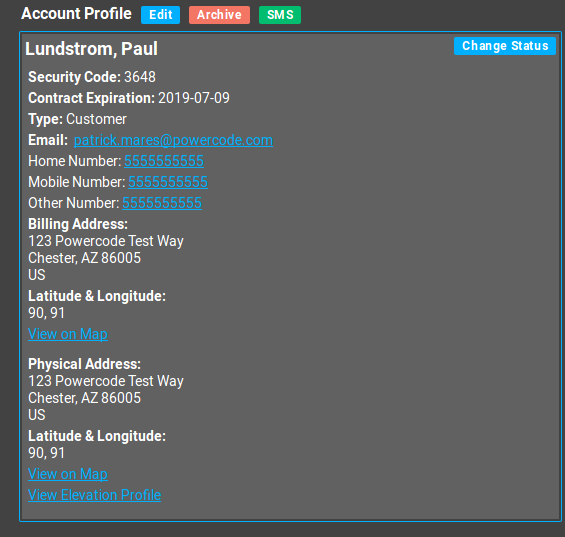
¶ Account Profile
- Edit: Allows editing of Account details. Contact specific information can be edited in the Contact widget.
- Archive: Archiving a customer largely removes them from powercode without impacting historical data concerning the Customer, fulfilling much the same purpose as a deletion. Archived customers can still be sent emails and text messages through Send Mass Notification, by users with the Archived Customer Information permission.
- SMS: Allows sending of an SMS or Text message via our Twilio integration. The integration must be active for this button to appear.
- Change Status: Allows changing the Customer between different Powercode Statuses.
- Tags: Customer Tags on the Customer account. Tags can be created under Accounts > Customer Tags and act similarly to Customer Groups, but more than one can be added per Customer. See Customer Groups and Customer Tags.
- Email: Link takes you to the Send Email page which allows you to send individual emails to the Customer account.
- Phone: Links call the indicated number on your internet based or smartphone phone app.
- View on Map: Displays Customer location on map. Requires geocoding or Latitude and Longitude.
- View Elevation Profile: Shows Elevation Profile of terrain between customer and nearest tower. Requires use geocoding or entry Latitude and Longitude on the Customer Account.
¶ Contract Controls
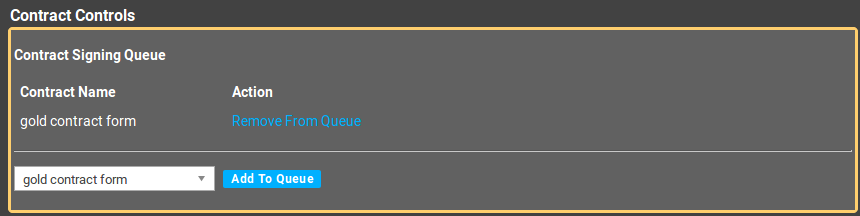 Contract Signing Queue: holds all Contracts that require signing. If Contract Redirection is turned on under Config > System attempting to access the internet from a device behind the BMU with an IP Address and MAC matching that of the Equipment on the Customer Account will redirect the customer to log in to their account so they can sign any remaining Contracts. Contracts can be created under Items > Contract Templates and associated to a Service upon creation of that Service. Contracts can be added to a Customer Account manually, via the Add to Queue button in Contract Controls.
¶ Notes
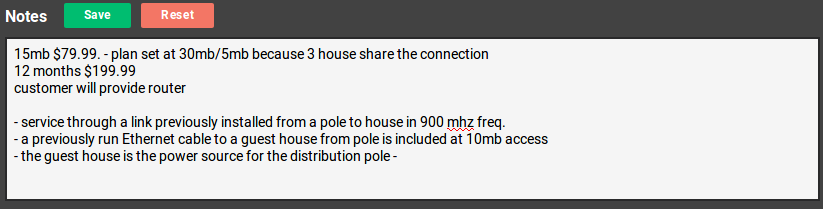 Notes on the Customer Account. Changes do not save till the Save button is clicked. Reset reverts the field to how it was at the start of the user session.
¶ Customer Event Logs
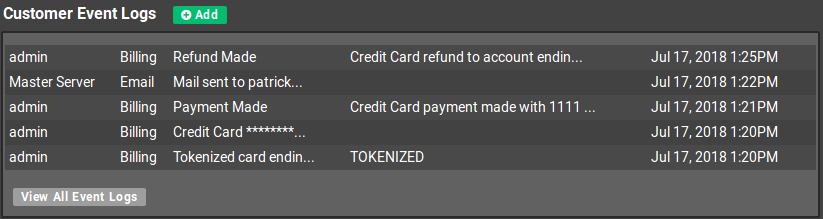
When something odd happens on a Customer Account this should be your first stop.
Customer Event Logs contain almost any modification made to a Customer Account. These detail the WebUser responsible, descriptive information and a timestamp. This information allows detailed troubleshooting should something unexpected happen.
¶ Custom Fields
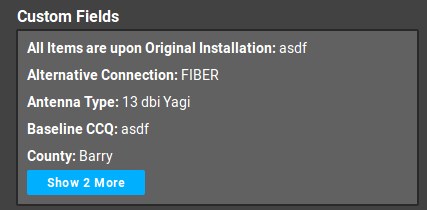 Any Custom Fields found under Items > Custom Items > Data Fields set to display on the Account page will display here once data is entered in the Custom Field. Data can be entered in the custom field in the Custom Tab on the Customer Overview.
¶ Call Logs
 Call Logs offer a place for technicians to record details of calls with a Customer.
¶ Contacts
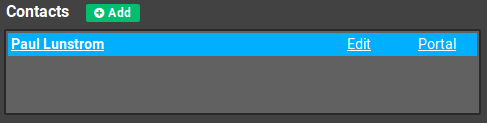 Contacts store information from the Customer Account that is specific to individual Contacts like phone numbers and Customer Portal credentials.
- Contact Name: Links to a page with Contact details.
- Title
- Edit: Allows editing of Contact details.
- Portal: Logs into the Customer Portal using the Contact's portal credentials. This is useful for diagnosing issues in the Customer Portal.
¶ Equipment
 Shows all Equipment on an account.
- Equipment Name
- Equipment Device Type: Governs device behavior. Defined under Items > Devices > Device Types
- Mac Address
- IP Address: Link opens IP address directly in browser.
- Status: Last known Status of device.
- More: Link to individual Equipment details.
¶ Usage
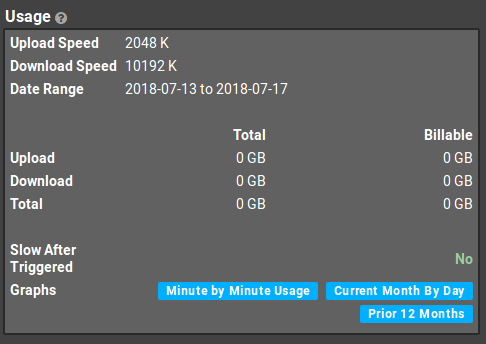 Shows Customer Usage and plan settings over the current Billing Period. Three usage graphs are available. Minute by Minute Usage shows data over a chosen period of time.
¶ Tickets
 Shows all Tickets for the Customer Account.By default Closed Tickets are only visible here and on the Closed Ticket Report. The TicketID links to the Ticket.
¶ Install / Service Calls
 This is a list of Installation and Service Calls created for the Customer. The Add button will allow you to create a new Service Call for the Customer. Start Time links to the Schedule Live View, showing today's date, or the date of the Job if it is currently scheduled.
¶ Monthly Services
 Lists all Monthly Services on the account. The Add button allows you to add Services to the account.
¶ Billing Information
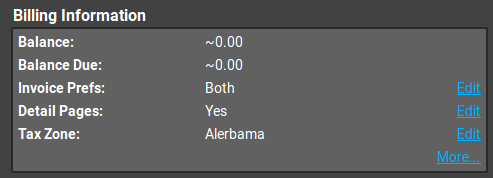 This section contains basic information from the Customer Overview - Billing tab. Clicking on More will take you to that tab.
¶ Recent Activities
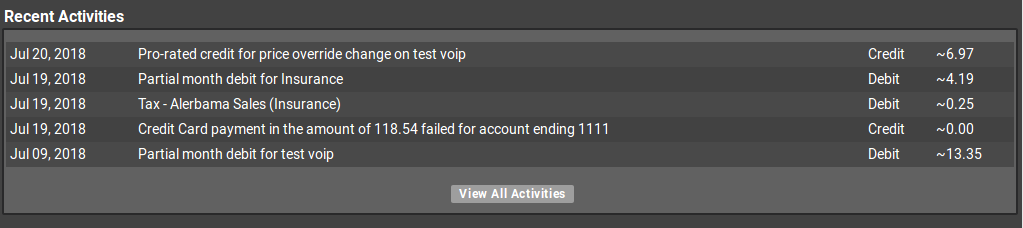 This section displays recent financial activity on the account. Clicking View All Activities displays all history and more detail, including a running balance.
¶ Billing Period
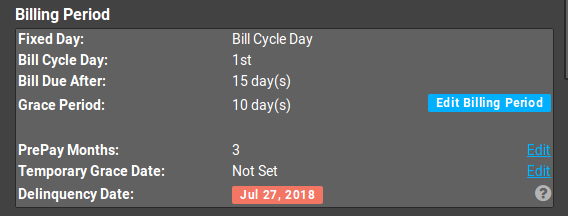 Billing period allows you to edit the customer billing period. This section functions similarly to the Billing Period section on the Customer Overview - Billing tab.